Your Account on an Event Website
If you are logged in to Eventene while viewing an Event Website, the top-right corner of the page shows which account you are using — and gives you a way to log out.
You do not need to be logged in to register for an event. This article is for when you already are.
Check which account you are using
Look at the top-right corner of the Event Website, just after the language selector. When you are logged in you will see your profile picture — or your initials, if you have not added a picture — next to your name.
Select it to open your account menu. The top of the menu shows your name and the email address of the account you are currently using.
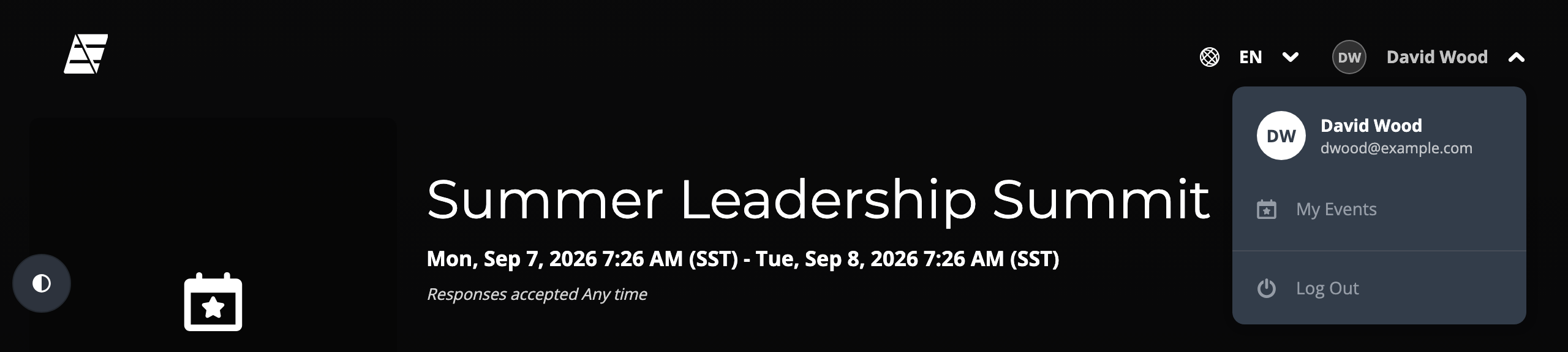
This is the quickest way to confirm you are using the account you expect — useful if you have more than one Eventene login, or share a computer with someone else.
What the menu contains
| Item | What it does |
|---|---|
| Your name and email address | Identifies the account you are logged in as |
| My Events | Opens your list of events in Eventene |
| Log Out | Logs you out and returns you to the same Event Website |
Log out
- Select your profile picture or initials in the top-right corner
- Choose Log Out
You stay on the same Event Website, and the corner changes to a Log In link.
On a phone
The corner shows just your profile picture or initials, to leave room for the rest of the header. Your name and email address are inside the menu when you open it.
If you do not see an account control
You are not logged in — the corner shows Log In instead. You can still read the Event Website and register without logging in.